Home / Automatic Doors / RUN-CHICKEN Firmware Update Failed? How to Use Repair Mode
RUN-CHICKEN Firmware Update Failed? How to Use Repair Mode
If a RUN-CHICKEN Bluetooth door stops working immediately after a firmware update, the update may have been interrupted before the new firmware finished installing. RUN-CHICKEN calls this OTA mode and provides a Repair option in the app.
Quick answer
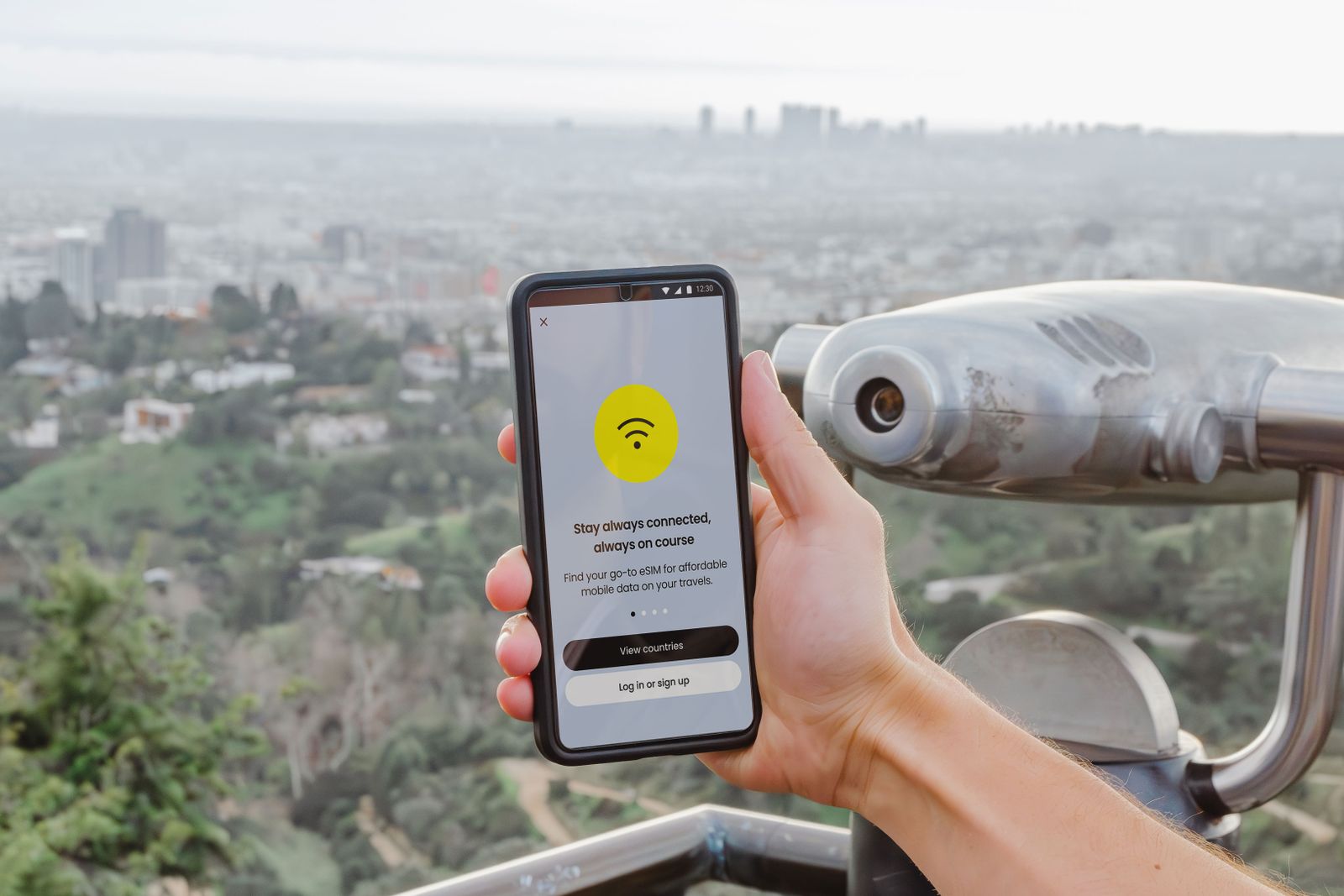
Stay close to the door with Bluetooth and internet working, open the RUN-CHICKEN app and choose Repair instead of Connect. Keep the app open until the repair finishes. If the device is no longer listed, use Add Device. If repair still fails, remove power for at least five seconds, restore it and retry.
Why a RUN-CHICKEN firmware update can fail
RUN-CHICKEN lists several causes: Bluetooth dropping, the phone moving too far away, internet loss, the door losing power or the app being closed during installation.
1. Move close to the door
Do the repair beside the coop rather than from inside the house. Bluetooth range and stability matter during firmware transfer.
2. Confirm internet access
Your phone needs a stable internet connection while the app retrieves and applies firmware.

3. Choose Repair instead of Connect
Open the RUN-CHICKEN app and use the Repair option if the device is in OTA mode. Keep the app in the foreground until the process completes.
4. If you deleted the device, use Add Device
RUN-CHICKEN says an unconfigured device can reappear as “Run Chicken Device” in the Add Device list. Add it again and complete setup.
5. Power-cycle if Repair cannot find the device
Remove the batteries or power source for at least five seconds, restore power and repeat the repair process.
What not to do during repair
Do not walk away with the phone, close the app or remove power while firmware is being installed. Those are the exact interruption conditions that can create the problem.
Frequently asked questions
Does a failed update mean the door is bricked?
Not necessarily. RUN-CHICKEN specifically provides Repair mode for this state.
What if the device disappeared from the app?
Use Add Device and look for “Run Chicken Device.”
Sources checked
We checked RUN-CHICKEN’s current Firmware Update & Repair FAQ.